How to use MultiLang Forms
Turn a monday.com board into a form people can fill in in their own language. Every response, in every language, lands back on the same board.
On this page
Before you start
Two things need to be true:
- A monday.com admin has to open the app once. Connecting the account is a one-time action that only an admin can complete. Until that happens, everyone else sees a waiting screen.
- Your board needs at least one supported column. Those columns become your form fields: see the supported list below.
Guests and viewers can't configure forms. They can still fill one in, but the editor is limited to admins and members.
Connect your monday.com account
Open the app on your board and choose Connect. You'll be sent to monday.com to approve the permissions the app needs, then returned to the app.
This happens once per monday.com account, not once per board or per person. After it's done, anyone on the account with the right role can build forms.
Your draft form is generated
You never start from a blank canvas. As soon as the account is connected, the app reads your board and turns every supported column into a form field, keeping the column's name as the field label.
Supported column types
| monday.com column | Becomes |
|---|---|
| Text | Single-line text box |
| Long text | Multi-line text box |
| Numbers | Number input, including the column's unit if one is set |
| Email input | |
| Date | Date picker, with a time picker if the column shows time |
| Checkbox | Checkbox |
| Status | Single choice, using the column's labels |
| Dropdown | Choice list, respecting the column's selection limit |
Anything else on your board is listed in the editor under Not supported. Those columns stay on your board and keep working normally; they just can't be filled in from the form.
Refine the form
Use Preview at any point to open the form exactly as a respondent would see it; this works before you publish.
Add your languages
The language switcher at the top of the editor controls which language you're editing. Add a language, and the form gains a full translatable copy of itself.
- One language is the canonical one. It's your source of truth. Anywhere a translation is blank, respondents see the canonical text instead, so a half-finished translation degrades gracefully rather than showing empty labels.
- While editing a translation, the editor shows the canonical text under each box as a Canonical: hint, so you always know what you're translating.
- Hide a language while you work on it. Hidden languages don't appear to respondents until you make them visible.
Translate the wrapper text, not just the fields
Under Form content, each language gets its own:
- Title and description
- Welcome message
- Submit button label
- Thank-you heading and message
Adjust the fields
- Label and help text: per language.
- Required: you can make a field required. If monday.com already requires that column, it's locked on and can't be turned off here.
- Drag to reorder. Field order is shared: changing it applies to every language version at once.
- Deactivate a field to leave it off the form. It moves to Not in your form and can be restored later.
For status and dropdown fields you also translate the individual choices. Respondents see your translated wording; monday.com still receives the original board value, so your board data stays consistent no matter which language was used.
Optional settings
- Language tracking column: records which language each respondent used. Pick an existing column or have the app create a new one on your board.
- Submission group: which group on your board new submissions are created in. Changing it only affects new submissions; existing items aren't moved.
- Password protection: respondents must enter a password before they can see or submit the form. One password for all languages, with a per-language explanation shown on the password screen. Availability depends on your plan.
Publish and share
Choose Publish form to make it live. If anything is genuinely broken, the Action required panel says so and publishing stays blocked until it's fixed: see Messages you might see.
Once published, Share gives you three things:
- One form URL. Respondents pick their own language from the switcher on the form.
- A URL per language. Useful when you already know your audience: link Spanish speakers straight to the Spanish version.
- An embed snippet for putting the form inside your own site.
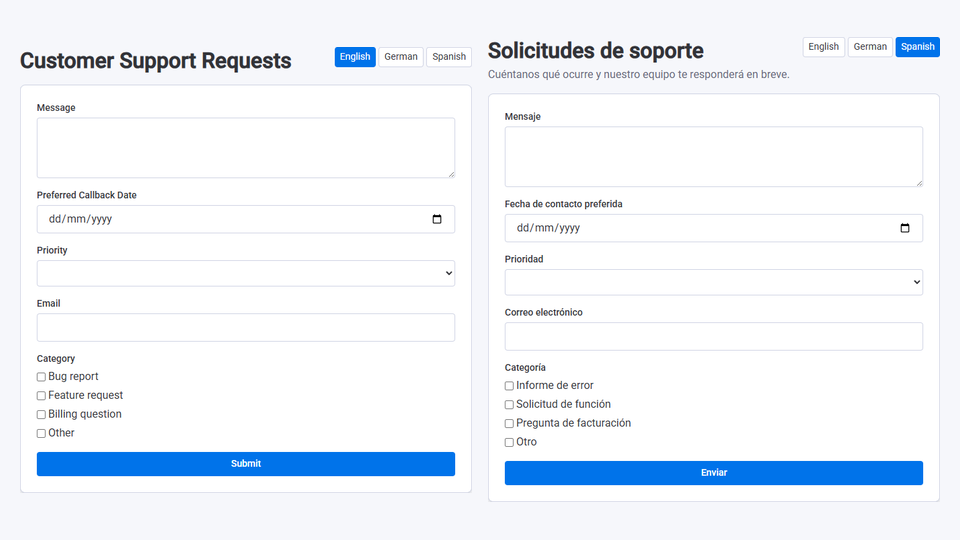
Unpublish takes the form offline and its public URLs stop working. Responses you've already collected aren't affected.
What happens when someone submits
A new item appears on your board, in the group you selected, with each answer written to the column its field came from. If you set up a language tracking column, the language the respondent used is recorded there.
Because every language writes to the same columns, you can filter, group, and report on your board exactly as you always have: the language is one more column, not a separate board.
Keeping your form in sync with the board
Boards change. The app checks yours periodically and flags anything that drifted in the Action required panel at the top of the editor, and on the affected field itself.
Notices come in two strengths. An error means the form is currently broken and submissions would be rejected by monday.com; an unpublished form carrying one can't be published. A warning means something changed and is worth a look, but nothing is broken; review it and choose Mark as reviewed to clear it.
Renaming a column on monday.com never overwrites the label you wrote. You get a notice telling you the column is now called something else, and you decide whether your form should follow.
Messages you might see
| Message | What to do |
|---|---|
| Ask a monday.com admin to open this app once to finish connecting it. | An admin needs to complete the one-time connection. Nothing for you to fix. |
| This app's connection needs to be renewed by a monday.com admin. | An admin opens the app and chooses Reconnect. Forms and responses are kept. |
| Guests and viewers can't configure forms in this app. | Ask an admin or member on your account to make the change. Guests and viewers can still fill in a published form. |
| This form's board has been archived on monday.com. | Restore the board on monday.com and the form starts working again: nothing is lost. The app rechecks automatically. |
| Your monday board requires this column, but it isn't part of your form. | Add the field back to your form, or make the column optional on monday.com. Otherwise every submission is rejected. |
| Your monday board requires this column, but this app can't fill in that column type yet. | Make the column optional on monday.com. Nothing can be submitted to the board while a required column can't be filled. |
| This column no longer exists on your monday board. | Answers to that field are no longer sent to monday.com. Remove the field, or re-add the column on your board. |
| This column's settings changed on your monday board. | Check the field's options below the notice, then dismiss it. |
| Some choices no longer exist on your monday board. | Respondents can no longer pick them. Review the remaining options, then dismiss the notice. |
| This column has an extra validation rule configured on your monday board. | Open the column's Validation Rules panel on monday.com to see the condition. An answer that passes every check on the form could still be rejected by that rule. |